
The service notice needs a second route
A first-session drill for the front desk: one card, five prompts and an owner decision on who checks a service notice
Executive decision: Give the office manager a separate way to verify service notices and test it this week with a made-up message. The first useful output is a filled Service Notice Check Card and one dry-run closeout line. The owner decides whether the route works with today's access or whether the check belongs with the IT provider. Thirty minutes is a planning estimate, not a measured saving.
A fake outage notice works when the fastest way to check it is the link inside it.
The signal this week
Microsoft Security Research published a post dated November 16 about a campaign Microsoft says it observed on November 13. The emails posed as Microsoft 365 service-health notices. Subjects followed an "Outage" pattern, sender display names carried "Outage Notification" or "Service Health" and the bodies named Exchange Online, Outlook, Teams, SharePoint and Copilot. The lure claimed mail had been held during a disruption and would be deleted within 24 hours unless the recipient acted. The button led through a recipient-specific tracking link to a destination outside Microsoft (source 1).
Mimecast's threat research team described the same held-mail and 24-hour wording on November 14 and tied it to a real Microsoft 365 service disruption on November 12 (source 2). iTnews reported the pattern the same day (source 3). So the lure rests on Microsoft's account and two outside reports. My read: a real disruption primes people to believe the next notice about it.
What nobody has shown is the outcome. Microsoft assessed the activity as likely credential phishing but said the available evidence doesn't confirm credential capture, malware delivery or activity after compromise (source 1). Mimecast doesn't report an outcome either. Microsoft also says messages in environments protected by Microsoft Defender for Office are currently blocked or quarantined. A business with that protection may never see one. Whether yours has it, none of these sources can tell you.
Microsoft's advice to users is short. Legitimate service-health messages don't send people to non-Microsoft domains to recover held mail. Validate a service issue through the Microsoft 365 admin center, not through links in an unsolicited email. Report suspicious messages through the Outlook reporting workflow (source 1).
That advice assumes someone can do those things. A shop with no administrator on staff has to turn it into a name on a card.
A second route, in four moves
The lure puts everything in the message: the clock, the button and the proof of urgency. A recipient who checks it by using the message has verified nothing. The fix is to take the click out of the verification path.
Four moves, in order. The front desk pauses at the link. A named checker opens service health from a saved bookmark or a typed address. The recipient reports the message through the existing route. The owner records who checked, what the independent route showed and whether the administrator needs to look at a click.
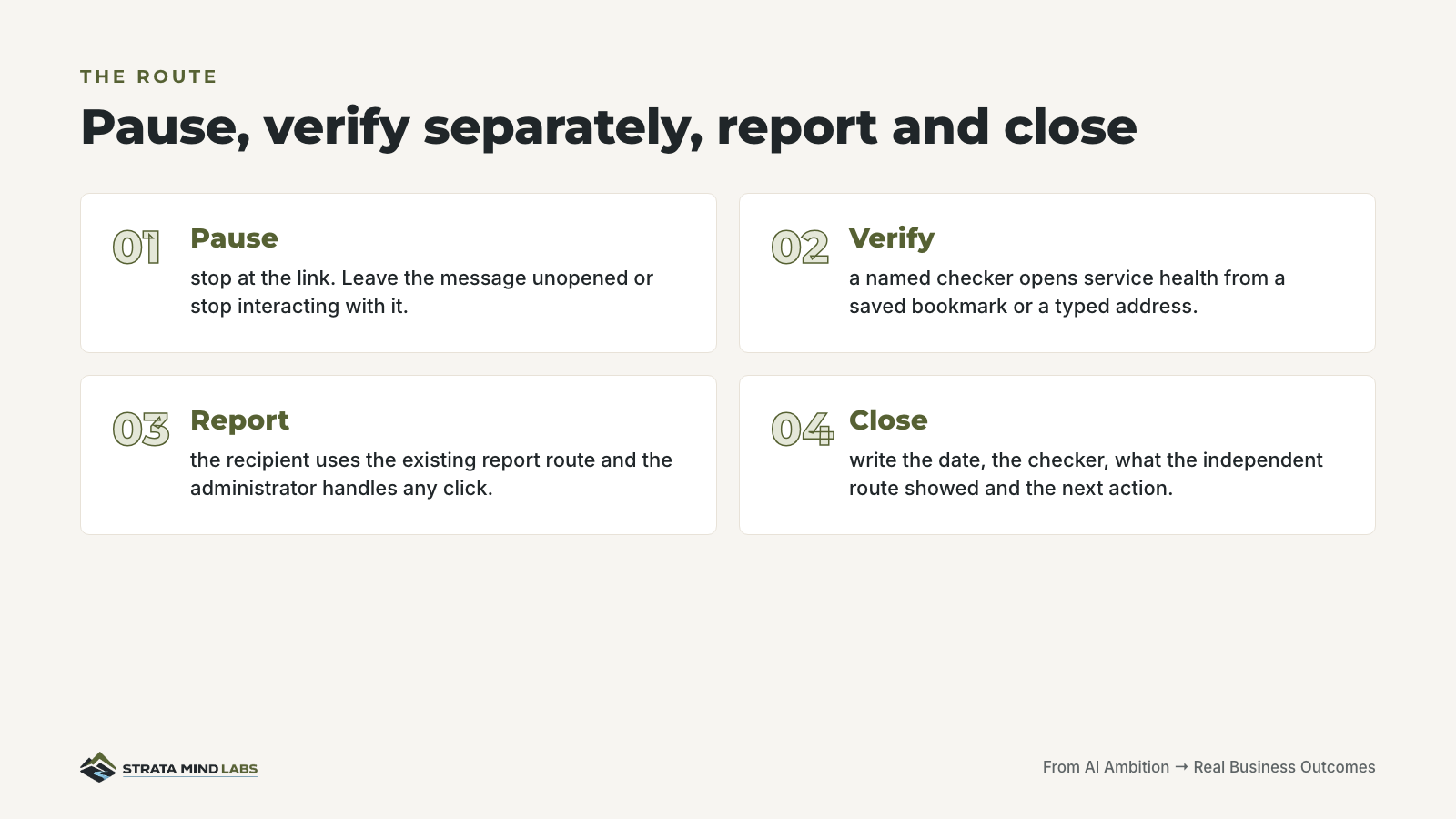
This is a Strata Mind Labs operating recommendation. It isn't a deployed control, and no source measured whether it works.
The strongest argument against it is plain. A good filter and the reporting button may already handle the message, and Microsoft says protected environments blocked or quarantined what it saw. A manual check can also slow a real incident. So the route has to stay short and get tested with the real admin access, not grow into an approval chain.
Who may check and who may act
Microsoft's service health page sits in the Microsoft 365 admin center under Health, then Service health. Its documentation names the Service Support admin and Helpdesk admin roles among those who can view it (source 5). If the office manager holds neither role, the route fails on day one, no matter how well the front desk spots the lure.
The same page points to a public Microsoft status page for known issues that block sign-in to a tenant. Whether that covers your checker is something the drill will show.
Reporting depends on setup. The built-in Report button appears in supported Outlook versions only when user reporting is turned on and the button is configured in the organization's user reported settings. The administrator chooses whether reports go to a reporting mailbox, to Microsoft or both, and reviews them on the User reported tab of the Submissions page in the Microsoft Defender portal. Reporting a message as phishing deletes it (source 4). So the front desk needs to know the button exists, and the administrator needs to know where the reported copy lands.
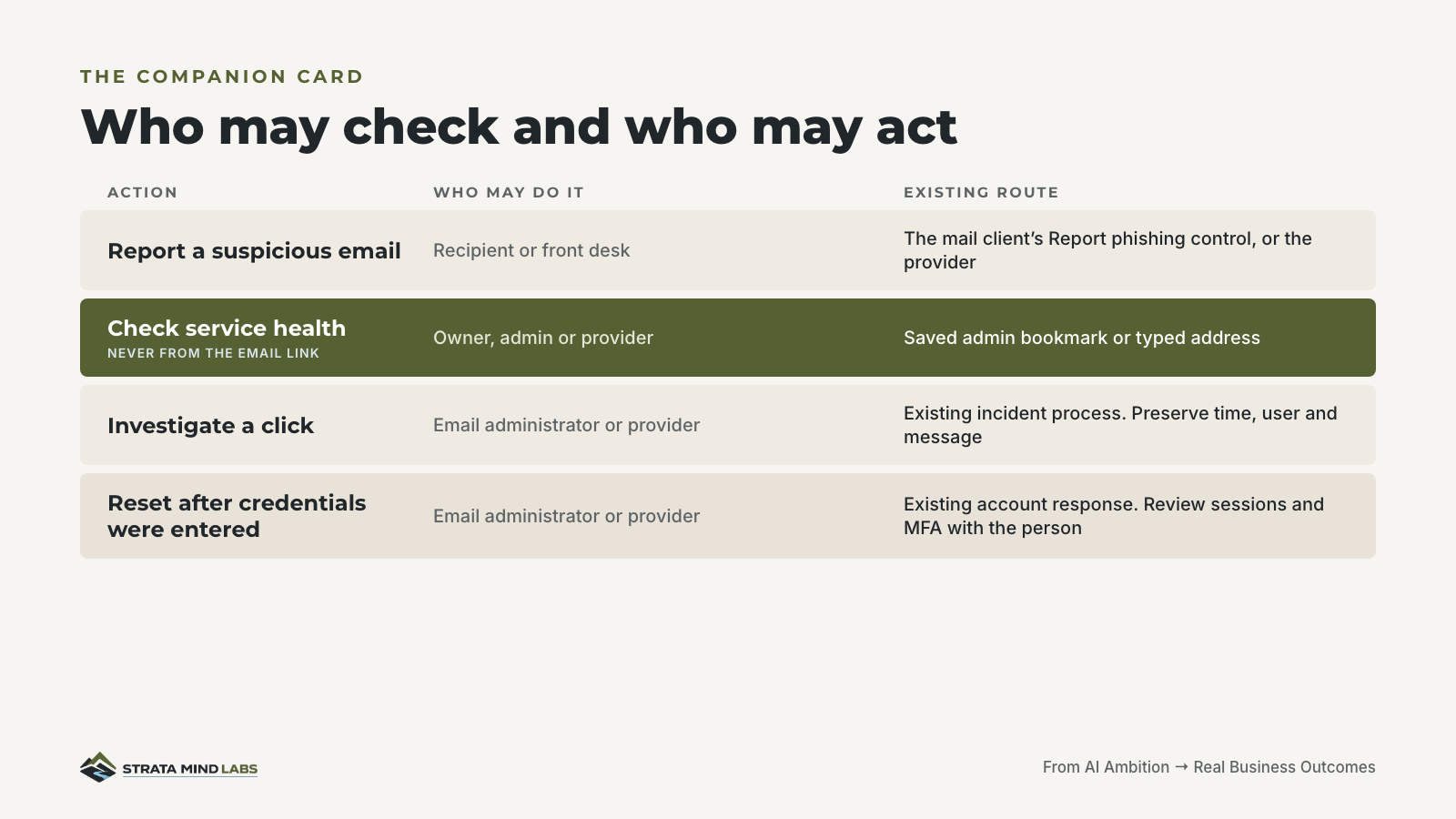
The card assigns each action to a person and an existing route. It's a human workflow. No AI tool gets access to anything here. The owner fills in the names and contact methods before the drill and keeps the card with the check card.
Thirty minutes at the front desk
The drill below is a reconstruction with a made-up message. It's an exercise, not client work and not a measured result. You need one blank Service Notice Check Card, the normal email admin bookmark, the IT provider's contact and three people: the owner, the office manager and whoever administers email. Thirty minutes is a planning estimate.
The owner starts by writing the checker's name and the trusted route on the card, plus the alternate contact and the report route. Then the office manager receives a clearly fictional note saying held messages will be deleted in 24 hours unless restored. No real customer data and no live lure. The recipient stops at the link, reports the note through the current route and hands the check to the named person. The checker opens service health separately, from the bookmark or a typed address, and writes one closeout line.
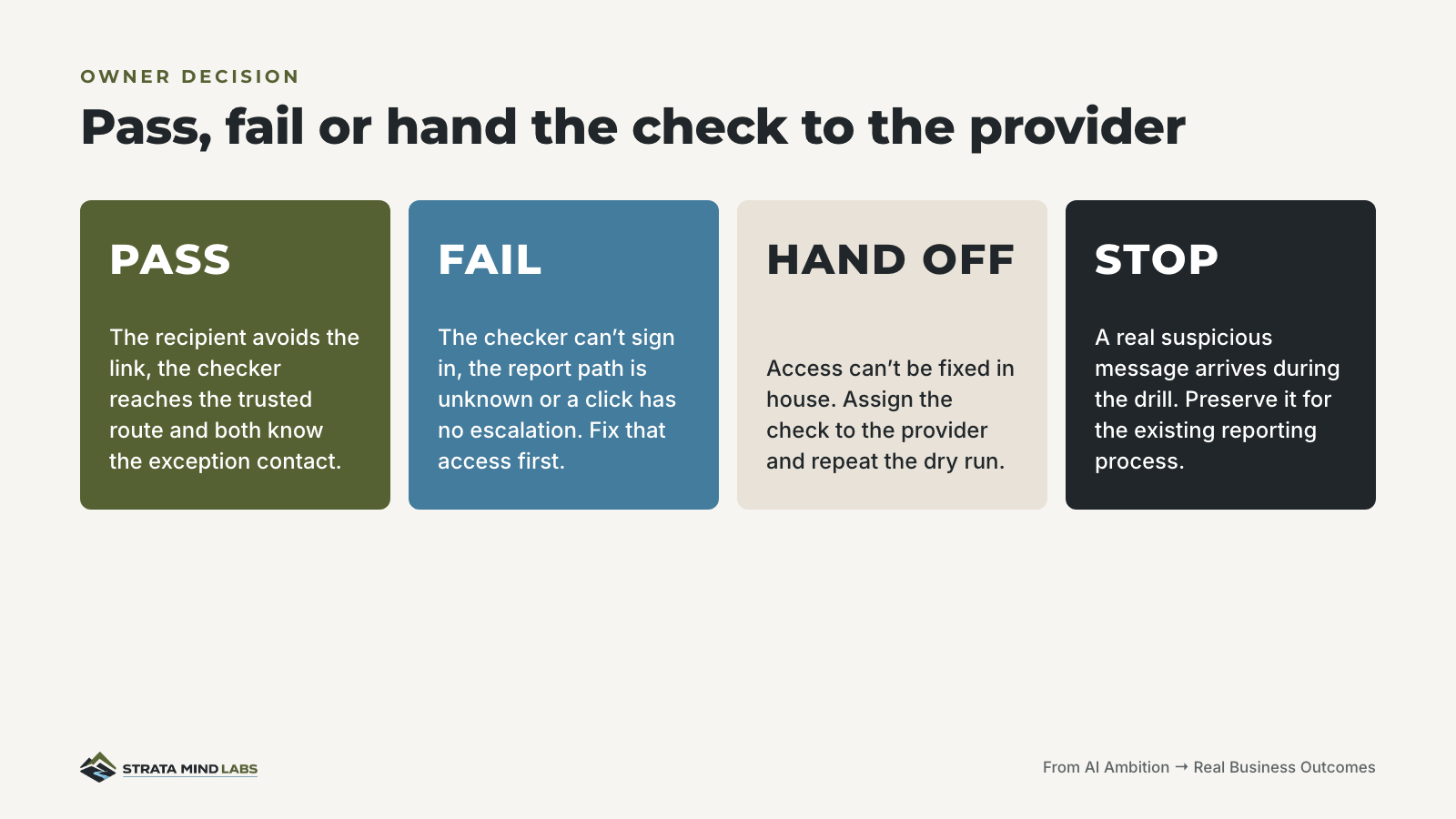
Pass means the recipient avoids the link, the checker reaches the trusted route and both know whom to call after a click. Fail means the checker can't sign in, the report path is unknown or a clicked message has no escalation. A failed dry run is useful output. It shows which access or handoff needs fixing.
A sample closeout line follows, and it's synthetic: "Nov 18. Office manager checked from the saved bookmark. No active issue listed. Report button not visible in the front desk's Outlook. Next action: administrator reviews user reporting settings." That's a normal first pass, and it has already found a gap.
If a real suspicious message arrives during the drill, stop the exercise, preserve the message and use the existing reporting process.
Five prompts to run this week
Use these with made-up descriptions of your front desk and email setup. The machine organizes the evidence. People test the access and own every change.
Map the current route
Copy this prompt
Using only this synthetic description of our front desk and email administration, draft a table of who receives urgent service notices, who can check service health from a known route and who handles a reported click. Mark every unknown as MISSING. Do not infer access or claim that any check occurred.
What this should tell you: Inspect the named roles and every MISSING cell. An admin role filled in without evidence is a warning sign. The route fails where a real person can't reach the independent check, so the owner or provider has to confirm each missing access path before the drill. Give only verified roles and routes to the next prompt.
Draft the check card
Copy this prompt
From the verified roles and routes supplied, draft a one-page Service Notice Check Card with trigger, pause action, trusted route, checker, report path, clicked-link escalation and closeout. Use blank fields where facts are missing. Do not include a link from any suspicious message.
What this should tell you: Look for an actual trusted route and a named checker. Blank fields should stay blank. A card is usable only when the team can follow it without guessing. Decide whether it's ready for a made-up notice, then hand it to the next prompt.
Run a synthetic walkthrough
Copy this prompt
Use this clearly fictional service notice: held messages will be deleted in 24 hours unless the recipient restores them. Walk through the card step by step. Return a table of expected human actions, evidence needed and unresolved handoffs. Do not simulate a live login or say that a person acted.
What this should tell you: Watch for a link click, an invented login or a skipped exception handoff. Each one is a failure in the proposed path. The walkthrough tests the written route before a live alert adds pressure, and it tells you which part a person has to test with real access.
Read the dry run
Copy this prompt
Using only the human-recorded dry-run observations below, separate observed actions from assumptions. Mark pass, fail or unknown for link avoidance, independent service-health access, reporting and clicked-link escalation. Do not claim security outcomes or infer that a real attack was prevented.
What this should tell you: Check each pass or fail against something a person observed. An unsupported pass is a warning sign. The owner needs a route that works with today's access, not a polished checklist, so the result decides whether you fix access, training or the provider handoff.
Prepare the owner decision
Copy this prompt
Summarize the corrected check card, human observations, missing evidence and unresolved exceptions. Give the owner two choices: adopt the route for urgent service notices or assign the check to the current provider. State the condition for each choice and do not recommend deployment when access is untested.
What this should tell you: Both choices should cite the actual dry-run evidence and keep the unknowns visible. The decision is who can verify a notice under pressure and who handles exceptions. The owner picks the route and names the person who keeps it current.
The owner decision
Approve the card only after the checker shows the trusted route and the front desk knows the report path. If access fails, assign the check to the provider and repeat the dry run. The owner has final authority over the route. The administrator handles any account response.
Record the decision and review the names whenever email administration changes.
What to do this week
A fair limit on all this
The campaign account is Microsoft's own investigation, and Microsoft doesn't confirm that any credentials were captured. Mimecast and iTnews describe the same lure, but none of the three measured an outcome. One campaign isn't a frequency. This briefing can't say how often a small business gets a notice like this or whether any received this one.
Microsoft also says protected environments blocked or quarantined the messages it saw, so the card may never get used. The card, the thirty-minute estimate and the pass and fail rules are Strata Mind Labs proposed practice. No source measured their benefit and no return is assumed. What you get is a named checker, a tested route and a known contact for the day a click happens.
The prompts are drafts and haven't been run against your records. The Microsoft Learn pages describe Microsoft 365 and supported Outlook clients, so another mail provider will have its own controls. To check this yourself, open the Microsoft post and compare its lure pattern with any held-mail notice your team has received. Then open the two Learn pages and see which roles and which Report button apply to your setup.
CIO Question of the Day
Who in your business can open your email service-health page from a saved bookmark today, and have they ever done it?
Sources
- Microsoft Security Research. (2026, November 16). High volume phishing campaign uses Microsoft 365 outage lures to target multiple industry sectors. Microsoft Security Blog. https://www.microsoft.com/en-us/security/blog/2026/11/16/high-volume-phishing-campaign-uses-microsoft-365-outage-lures-target-multiple-industry-sectors-2/
- Mimecast Threat Research and Intelligence. (2026, November 14). Attackers exploit the Microsoft 365 outage with fake "held messages" lures. Mimecast Blog. https://www.mimecast.com/blog/attackers-exploit-the-microsoft-365-outage-with-fake-held-messages-lures/
- Saarinen, J. (2026, November 14). Phishers quick to exploit extended M365 outage. iTnews. https://www.itnews.com.au/news/phishers-quick-to-exploit-extended-m365-outage-630347
- Microsoft Learn. (n.d.). Report phishing and suspicious emails in Outlook for admins. Microsoft Defender for Office 365. Retrieved November 17, 2026, from https://learn.microsoft.com/en-us/microsoft-365/security/office-365-security/submissions-outlook-report-messages?view=o365-worldwide
- Microsoft Learn. (n.d.). How to check Microsoft 365 service health. Microsoft 365 Enterprise. Retrieved November 17, 2026, from https://learn.microsoft.com/en-us/microsoft-365/enterprise/view-service-health?view=o365-worldwide
Don’t verify a notice through the notice. Name the checker before the email arrives.
New briefings land as soon as the signal is worth your time.