
Set the Access Boundary Before AI Usage Reports
An operator blueprint for team reporting
Executive decision: Decide whether an Owner may enable one limited team report once the access map and staff notice have been reviewed. Start with the Enterprise settings page, the current admin role list and a blank access worksheet. This is a labeled reconstruction for planning. No client deployment or measured outcome is claimed.
A usage report tells you how a team works with AI. It can also show other people what your team typed. Settle who sees it before you switch it on.
The signal this week
Anthropic's help documentation describes Smart reports, a Claude Enterprise feature that is off by default. An Owner turns it on. Owners, Admins and custom roles with Analytics view access can then create reports, and delegates can do the same within their assigned groups or departments. A report covers a team, the products you pick and a window of up to 28 days. Claude reads a sample of transcripts in that scope, groups the sessions into workstreams and attaches spend to each group at list price.
Anthropic's release notes date the beta announcement to September 10, 2026. A later availability date has been repeated in newsletter coverage. We couldn't find it in the release notes or the help page, so don't plan around it.
The help page also documents privacy controls. Restricted-topic sessions are used only for aggregate analysis and get no session summary. An organization-level toggle for attribution to individual users is off by default, and when someone reveals a name or session ID, that reveal is logged. Some setups can't use the feature at all. The page lists customer-managed encryption keys, a HIPAA configuration and a hybrid deployment that runs inference on your own cloud provider.
What the sources show and don't
That's vendor documentation, and it describes the product. It can't tell you how your organization has configured access. Your role list might give Analytics view to someone you wouldn't expect. The page doesn't give a sample size either, so you can't judge from the documentation how representative a sample is. It does say you can preview the number of sampled sessions before you create a report.
NIST's AI RMF Playbook offers a governance comparison. It lists accountability structures and executive responsibility for AI risk decisions under its Govern function. NIST says the playbook's suggestions are voluntary, and it isn't a certification of anything described here. Nothing in these sources shows that this process improves a result. It's a method for deciding before you act.
The strongest counterargument is simple. If nobody on your team needs a usage report to make a decision, leave the feature off. That's a legitimate outcome of the first session.
One row before one report
SML's proposed 80/10 Operator Test asks one question. Can the first report support one team decision with a named owner and a clear stop rule? If it can't, you don't need the report yet.
The useful output isn't a report. It's an authority card, a staff notice and a read-only scope. Treat spend and adoption as team signals and keep individual employment decisions out of this workflow entirely.
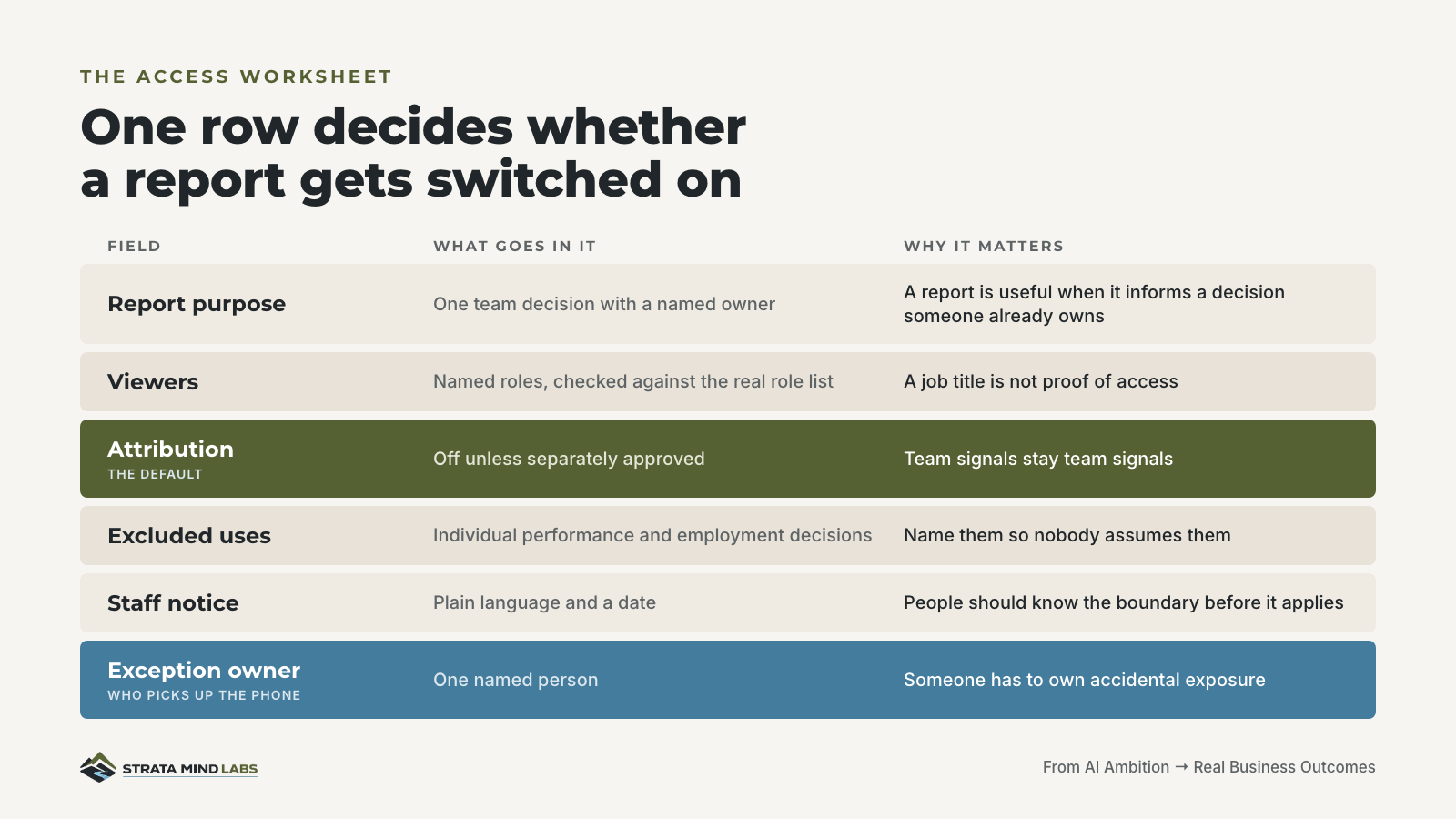
A complete row names a purpose, a viewer, an excluded use, an exception owner and the staff notice. Blank fields stop activation. So does a performance-evaluation purpose.
The first 60 minutes
You need a current Claude Enterprise tenant with Owner access to check the real setting. The worksheet itself needs only a file or spreadsheet. Plan on about 60 minutes with the Owner, an HR or privacy lead and an operations manager. That's a planning estimate, not an observed result.
Record the product scope, the 28-day maximum window, the viewer roles, the attribution setting, the restricted uses, the notice date and an exception path. In that first hour, write one row naming the report purpose, who can view it and whether attributed view stays off.
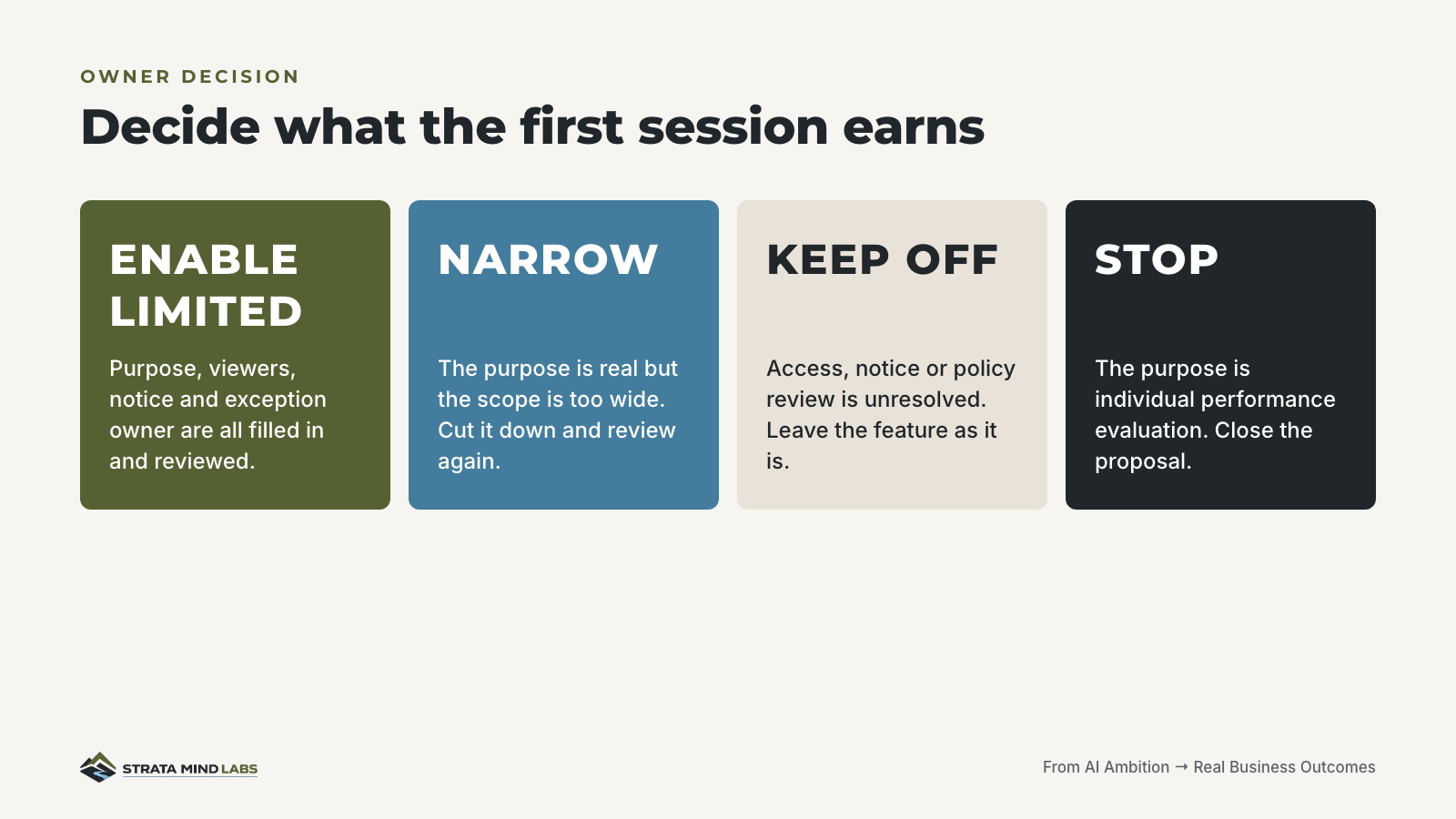
Report generation can take hours, so the afternoon output is a reviewed draft and not a live report. Test the actual controls with a synthetic or redacted session only after the review. Stop before enabling when access, purpose, notice or local policy review is unresolved.
Who decides what
The Owner is accountable for enabling the feature. The HR or privacy lead reviews the purpose and the notice. A staff representative helps judge whether the notice is accurate and ready to share. Together they approve or narrow the reporting scope.
Keep attribution off unless a separate, documented purpose is approved. A visible role list is the starting boundary and not proof that access is appropriate.
Five prompts to run this week
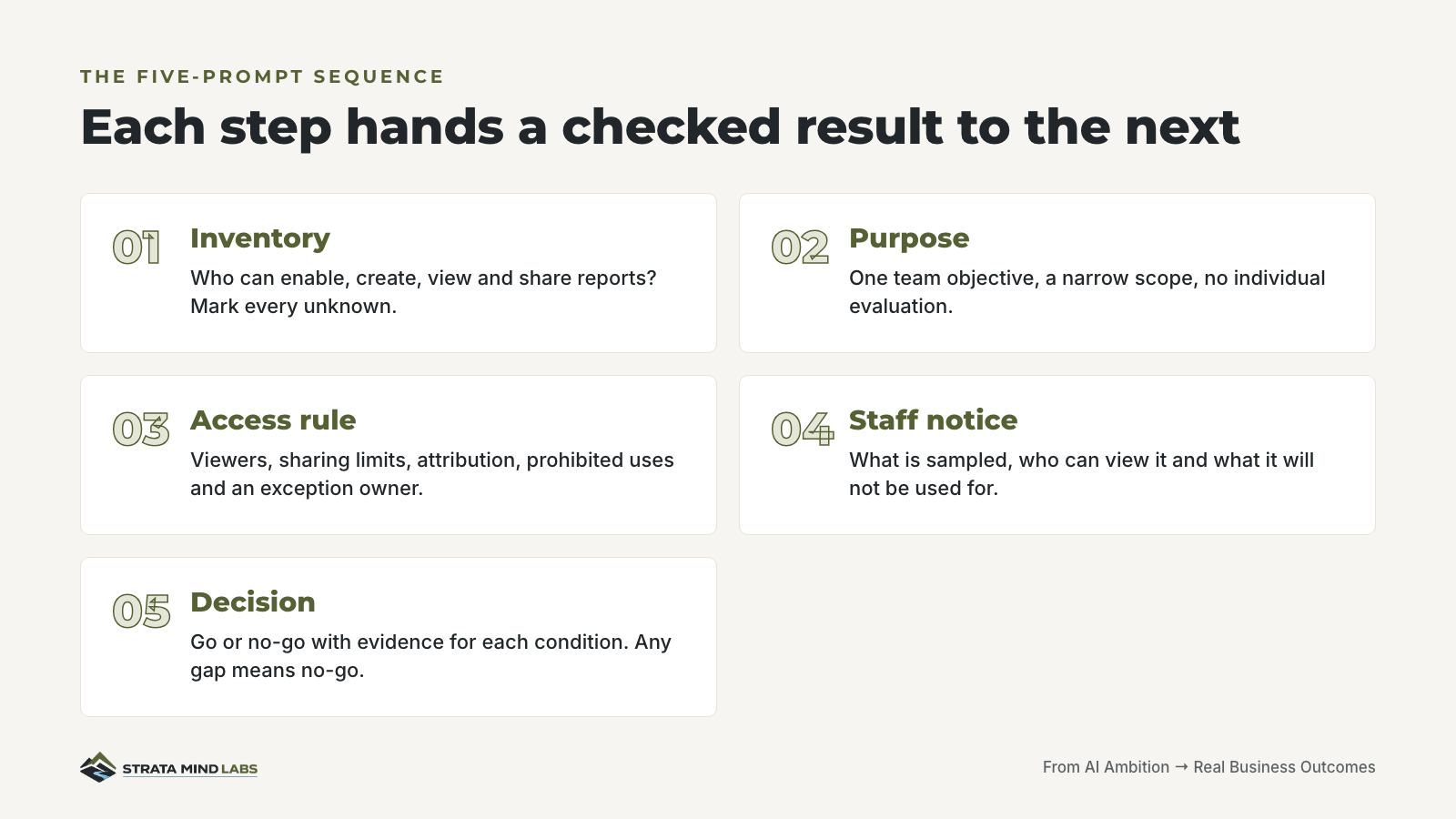
Run these in order. Give each prompt only the settings and records you've approved, and check every result against the tenant before moving on. Don't paste employee conversation content into any of them.
Inventory the current reporting boundary
Copy this prompt
Using only the settings and role list I provide, make a table of who can enable, create, view and share AI usage reports. Mark every unknown as UNKNOWN. Do not infer access from job titles. Do not include employee conversation content.
What this should tell you: whether the role table has gaps, unverified assumptions or a role that can see reports by default. Every UNKNOWN is work for a human. Decision: the Owner keeps the feature off while those permissions are checked.
Define a narrow business purpose
Copy this prompt
Using the verified role table and one team objective I provide, draft a report purpose, selected team, products and date window. Exclude individual performance evaluation and employment decisions. Mark unsupported business claims as UNKNOWN.
What this should tell you: whether the scope is narrow and the purpose names a real team decision. Watch for any claimed benefit that has no evidence behind it. A report earns its place when it informs a decision someone already owns. Decision: approve or narrow the scope before anyone runs a report.
Draft the access and exception rule
Copy this prompt
From the approved purpose and verified permissions, draft a one-page authority rule. Name viewers, sharing limits, attribution setting, retention question, prohibited uses and the person handling accidental exposure. Leave unresolved policy items clearly flagged.
What this should tell you: whether any viewer is unnamed, the sharing path is unclear, the exception owner is missing or the draft quietly assumes something about retention. Privacy controls lower risk only when human authority matches the product configuration. Decision: whether the HR or privacy review is complete enough to move to the staff notice.
Write a plain employee notice
Copy this prompt
Draft a short employee notice from the reviewed authority rule. Explain what is sampled, who may view reports, what the reports may be used for, what they will not be used for and whom staff can ask. Do not claim perfect filtering or legal approval.
What this should tell you: whether each statement matches the tenant settings and the policy review. Flag any privacy promise the sources can't establish. The notice should describe the real boundary in words people can follow. Decision: the human reviewers confirm the notice is accurate before anyone shares it.
Make the activation decision
Copy this prompt
Build a go or no-go decision record from the role table, limited scope, authority rule and reviewed notice. List evidence for each condition, open gaps, the accountable Owner and a rollback action. If any condition is unresolved, recommend NO-GO. Do not claim a report was run.
What this should tell you: whether the evidence column cites actual settings and approvals. Look for a blank notice date or a missing rollback owner. The record turns the feature into a governed operating choice. Decision: the Owner decides whether to enable a limited team report after human sign-off.
How to read the result
The five prompts produce a draft decision record. The business value is an accountable view of team adoption and cost. What stays uncertain is sampling, how well restricted-topic classification works in your tenant and your local policy requirements.
The next human decision is plain. Approve only a limited scope with named viewers and a staff notice, or keep the feature off. If you approve, run one report and review it against the limits you wrote down. Set that rule before the report exists.
What to do this week
A fair limit on all this
This is a reconstruction for planning. It isn't client work and nobody measured it. One first session is one case, and it says nothing about how often these problems show up. Anthropic's pages are vendor documentation and describe the vendor's product and its own claims. We haven't verified how the feature behaves in a live tenant.
The 60-minute estimate, the one-row test and the stop conditions are SML proposed practice and not sourced benchmarks. No return is assumed anywhere in this method. Local law and company policy on monitoring staff vary, so check yours before any notice goes out.
If the answer is to keep the feature off, you've still done the job. You now know who holds access and why.
CIO Question of the Day
If an AI usage report landed in your inbox tomorrow, could you name every person who can open it and the decision it exists to support?
Sources
- Anthropic. (2026). Get started with Smart reports. Claude Help Center. https://support.claude.com/en/articles/16893491-get-started-with-smart-reports
- Anthropic. (2026, September 10). Smart reports (beta) [Release notes entry]. Claude Help Center. https://support.claude.com/en/articles/12138966-release-notes
- National Institute of Standards and Technology. (n.d.). AI RMF Playbook. NIST AI Resource Center. https://airc.nist.gov/airmf-resources/playbook/
- National Institute of Standards and Technology. (n.d.). Govern. NIST AI RMF Playbook. https://airc.nist.gov/airmf-resources/playbook/govern/
Decide who can see the report before anyone asks what it says.
New briefings land as soon as the signal is worth your time.