
Give Every Workspace Agent an Owner
Google now requires AI agents to identify themselves and reach Workspace through its MCP servers, with enforcement from February 1, 2027. The first useful step for an owner is a sheet that shows who can touch company Gmail, Drive and Calendar, and who approves what they do.
Executive decision: Decide who is allowed to connect to company Gmail, Drive or Calendar, and who approves an action that changes or shares data. Start with the connected-app list you already have.
An app your office manager connected two years ago still has its keys. Somebody should know what it opens.
The signal this week
On November 24, Google's Workspace Updates blog made Workspace MCP servers and the official Workspace CLI generally available (source 1). MCP (otherwise known as Model Context Protocol) is the standard plumbing an AI assistant uses to reach another system. The same post lays down a rule: "AI agents or similar access tools must use MCP to access Workspace data, rather than calling Workspace REST APIs directly. Technical enforcement begins on February 1, 2027."
External agents also have to identify themselves in OAuth, the sign-in handshake that grants an app its access. Google's setup guide says a client that calls the MCP servers must have "Use this client for an AI-powered agent" selected, and it lists a Google Cloud project and an MCP host such as Claude as prerequisites (source 3).
The admin side matters more to a small business. Admins can set rules that prompt users to confirm sensitive actions, and audit logs record agent actions and those confirmations. Google says the admin console controls are rolling out to all customers over two weeks (source 1), so your admin may not see every switch yet.
Two details for whoever reads contracts. A Standard tier is free with published usage quotas, and from April 1, 2027 the Scaled tier bills only for use above the daily free allowances. Google says over 99% of active developers already sit inside Standard. That's Google's figure about developers in general. It says nothing about your usage.
The terms moved too. Google's Workspace AI Tools Addendum, last modified November 24, bars storing "Google Technical Information" for more than 30 days and bars using user data or that information for model training (source 2). Any third-party agent your team runs is now operating under that addendum.
The list comes before the agent
Picture an office manager at a small shop who connected a scheduling helper and an email-triage tool to company Gmail. That's an illustrative reconstruction, not a client account. Each one was a sensible choice on the day. Nobody wrote down what either can read or whether either can send and share. Who would approve it if one did is anyone's guess.
Google will start checking the access path in February. Whether anything on that path is safe for your business is a separate question, and Google can't answer it for you. An inventory shows what's on the path today.
If your inventory finds no agent and no unexplained access, stop there. Don't invent a migration project because a vendor published a deadline.
One row for every connected app
The sheet asks three questions of every tool: what it can read, what it can change or share and which human confirms the sensitive action. Add who uses it and how it reaches Workspace, and you have the whole row.
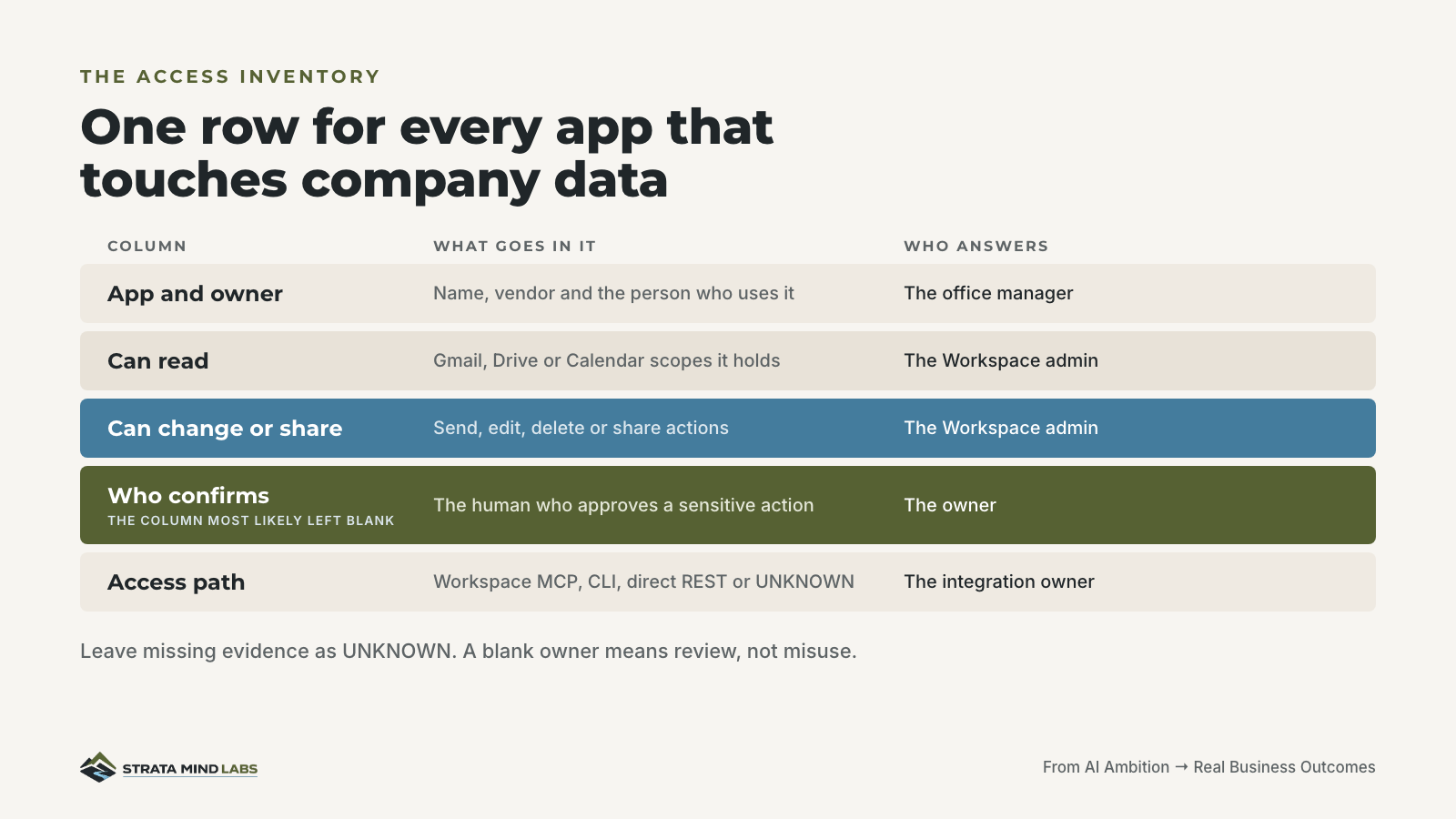
The roles split by what each person actually knows. The office manager knows the daily work. The Workspace admin knows the access list and scopes. The integration owner, often a vendor or a contractor, knows whether the tool calls Workspace MCP or REST directly. The owner accepts or rejects the business use. A vendor's feature sheet can't make that call for you.
Watch the confirmation column. A permission can exist for years without the tool ever using it. The row has to say who approves the day it does.
The first session
This is a labeled reconstruction, not a client result. Budget 60 to 90 minutes as a planning estimate. You need Workspace admin access, the owner or office manager who can name the business use for each app and a blank spreadsheet. No new software.
In the Admin console, open Security, then Access and data control, then API controls. Google's Admin Help shows each app's requested OAuth scopes and whether it's marked Trusted, Limited, Specific Google data or Blocked (source 4). Export or copy the app names and scopes. Then fill one row per app and leave anything without evidence as UNKNOWN. Don't paste customer mail or file contents into an AI tool for this.
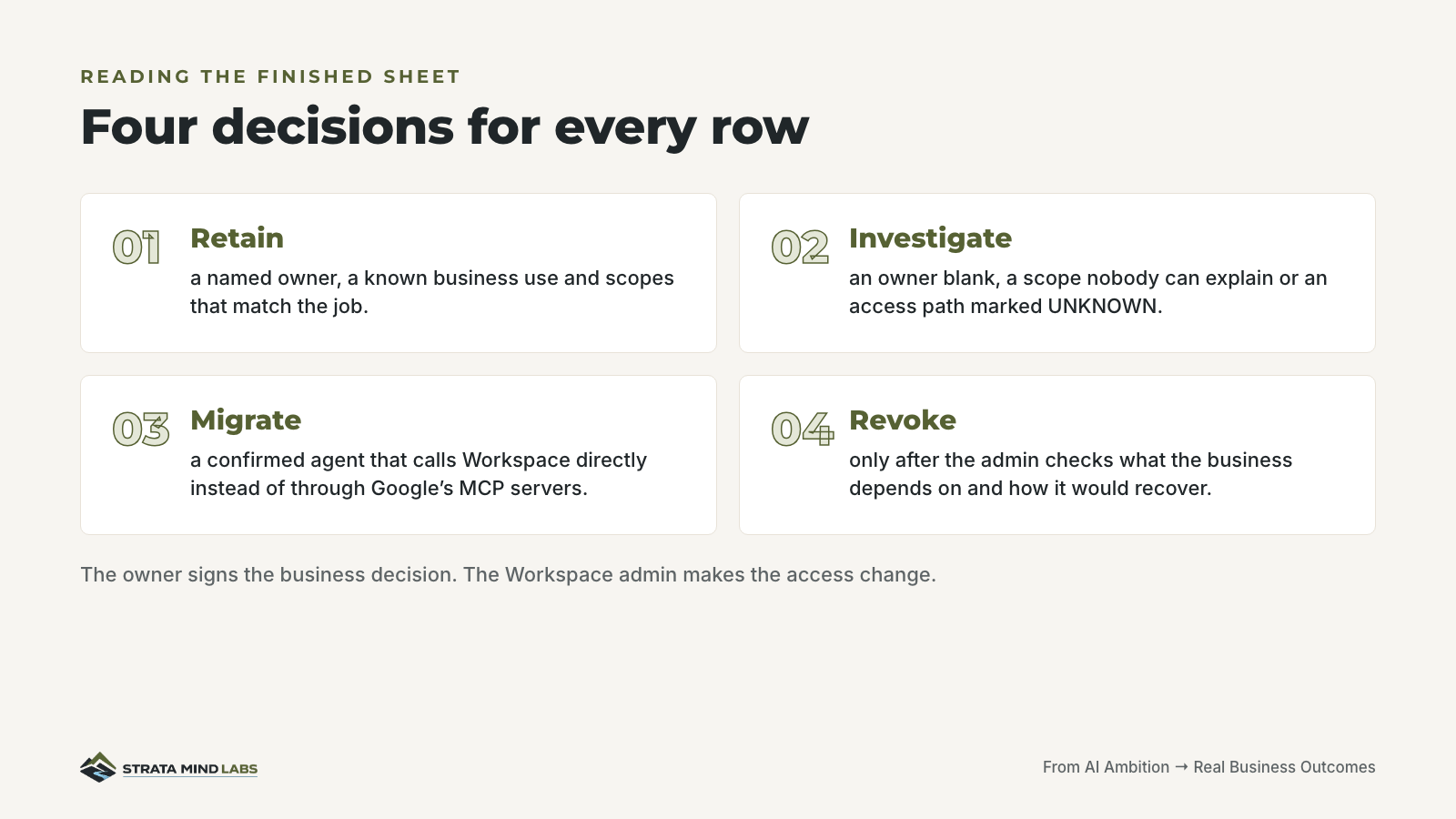
The first useful output is a spreadsheet with owner blanks easy to see. A blank owner or a broad scope nobody can explain is an exception to review. It isn't proof of misuse. The stop condition is simple: no new access for any tool nobody claims. If revoking an app could interrupt scheduling or customer service, document the dependency and set an admin-led review date before anyone pulls access.
Five prompts to run this week
Run these in order in the AI tool you already use, on a redacted copy of the app-access export and nothing else.
Inventory the entries
Copy this prompt
Use only the redacted app-access table I provide. Return one row per connected app with app name, scopes, business owner, purpose and evidence date. Preserve blanks as UNKNOWN. Do not infer a vendor's access from its name. Flag entries with no owner. Do not use customer email or file contents.
What this should tell you: Check the row count against the Admin export, every blank owner and any scope the AI made up. A count that doesn't match means the inventory is incomplete and the next prompt waits. The office manager decides which entries have a known business purpose.
Separate agents from ordinary apps
Copy this prompt
From the confirmed redacted inventory, add columns for agent or ordinary app, evidence for that label, OAuth client and access path: Workspace MCP, CLI, direct REST or UNKNOWN. Use UNKNOWN when documentation is absent. Do not guess from product marketing.
What this should tell you: Look at the evidence behind each label and count the UNKNOWN paths. A confident agent label with no documentation is a warning sign. The February rule applies to agent access, so the integration owner decides which entries need technical proof.
Map action authority
Copy this prompt
Using the verified rows only, list what each tool can read, change or share, any user confirmation setting and the named human who approves sensitive actions. Mark missing evidence UNKNOWN. Do not equate a scope with an observed action.
What this should tell you: Find the broad scopes, the missing confirmation evidence and the rows with no human approver. Make sure the AI didn't invent an action a tool has taken. The Workspace admin decides which permissions and confirmation rules need review, and a missing approver stops any new approval.
Prepare the exception list
Copy this prompt
Create an exception table from verified inventory rows. Include unknown owner, unexplained scope, uncertain access path, missing confirmation and unreviewed vendor terms. Rank by business consequence, not by a made-up risk score. Give each exception a specific evidence request and a human reviewer.
What this should tell you: Every exception should point back to a real row, and none should claim an incident without evidence. Treat the result as a work list for the owner and the admin, with no security finding implied. The owner picks which business dependency to check first.
Draft the disposition
Copy this prompt
For each verified row, draft retain, investigate, migrate or revoke after admin review. Cite the row evidence and unresolved questions. Flag any agent using direct REST for a February 1, 2027 path decision. Do not execute access changes or claim a vendor has passed a terms review.
What this should tell you: Look for evidence beside every disposition, an owner name on every row and any migration claim the AI made up. An unsupported row stays at investigate. The owner signs the business decision and the Workspace admin makes the access change.
What to do this week
A fair limit on all this
Google's announcement describes Google's rules. It doesn't show that your business has an agent, that any agent is safe or that the new controls save anyone time. One announcement gives you a date to plan around and says nothing about the state of your own account.
Feature descriptions, rollout timing and the 99% figure are Google's own claims. One more wrinkle: the blog calls the MCP servers generally available, while the setup guide still carried a Developer Preview banner when we read it on November 25. Have your admin confirm what your edition actually offers.
The authority check, the row layout, the four decisions, the prompts and the 60 to 90 minute estimate are Strata Mind Labs proposed practice. They haven't been measured at a client, and no time saved or risk reduced is assumed. If a vendor's terms appear to conflict with how your team uses a tool, have that reviewed before you authorize it.
CIO Question of the Day
When you finished the sheet, how many rows had nobody in the "who confirms" column?
Sources
- Google Workspace. (2026, November 24). Simplifying agent access while keeping organizations in control: MCP servers, CLI, standardized usage tiers, and admin policies. Google Workspace Updates. Retrieved November 25, 2026, from https://workspaceupdates.googleblog.com/2026/11/mcp-servers-cli-standardized-usage-tiers-now-available.html
- Google. (2026, November 24). Workspace AI tools addendum. Retrieved November 25, 2026, from https://workspace.google.com/terms/ai-tools/
- Google for Developers. (n.d.). Configure the Google Workspace MCP servers. Retrieved November 25, 2026, from https://developers.google.com/workspace/guides/configure-mcp-servers
- Google Workspace Admin Help. (n.d.). Control which apps access Google Workspace data. Retrieved November 25, 2026, from https://support.google.com/a/answer/7281227
Access is what the tool can touch. Authority is who says yes before it does.
New briefings land as soon as the signal is worth your time.