
Copilot Limits Need an Owner
A request card for the work that meets an unseen cap
Executive decision: Ask the Microsoft 365 admin to check the license request and self-service purchase settings. Use a Copilot Limit Request Card (the fields are below) for one real task. Buy a seat only after the task, the interruption, the fallback, the price and the owner's decision are written down. A 45-minute first session is a planning estimate, not a measured result.
A limit notice gives an employee a way to ask for a seat. Nothing in it says the shop needs one.
The signal this week
Microsoft's November 4 Partner Center announcement says additional fair-use limits on Copilot Chat features began November 2 for commercial tenants with 2,000 or fewer Microsoft 365 seats. Larger tenants follow on November 9. The limits apply to people without a paid Microsoft 365 Copilot license, on web, desktop and mobile. Copilot Chat itself stays included in Microsoft 365 subscriptions (source 1).
Microsoft calls hitting a limit expected behavior. It says the limits can vary through the day, that responses already in progress aren't interrupted and that the product tells the user when the feature will be available again. It doesn't publish the thresholds, and admins can't see or change them. Microsoft's support page says the same about numeric limits (source 2). A shop can't plan around a number it will never be shown. It can only watch what happens to the work.
The notice usually carries an upgrade option. In most organizations, per the announcement, the user can request a Microsoft 365 Copilot license from the admin, who approves or denies it in the admin center. If the tenant allows direct purchase, the user might also see a buy option.
Microsoft's own advice to admins is short: tell the help desk and review license request settings. The announcement was written for Microsoft's reseller partners, and its subtitle says the limits "create an upsell conversation with your customers." It adds that reaching a limit "might indicate interest in additional Copilot capabilities." That's a vendor's sales hypothesis. It's a fair thing for a vendor to say and a poor basis for a purchase order.
One more detail from the same page: Microsoft says partners can open a view called Users Experiencing Usage Limits that shows which of their customers have users reaching a limit. If a reseller manages your licenses, that view may mean they hear about a cap before you do. Ask whether they're watching it.
What Microsoft's admin pages add
Two settings decide what happens after the click, and they interact. Microsoft's admin documentation says the license request queue applies to products where self-service purchase is blocked. Where purchase is allowed, the user can buy directly (sources 3 and 4).
The purchase page adds three facts worth putting on the card. New products default to allowing self-service purchase. A self-service purchase needs a payment method at sign-up and renews at the end of its term without a new decision. And an admin can't assign or unassign licenses on a subscription an employee bought until the admin takes it over. I haven't confirmed Copilot's default in any tenant, so someone has to look.
Where to look is specific. The request queue is the Requests tab under Billing, then Licenses, and Microsoft says working it takes at least a User Administrator or License Administrator role. The purchase setting sits under Settings, Org settings, Services, then Self-service trials and purchases. Changing it takes a Global Administrator and, per Microsoft, can take up to 72 hours to show. If the shop already points users to its own request process, the Requests tab stays empty by design.
A seat also has its own bill. Microsoft's November 3 partner update says usage-based billing will be on by default for new Microsoft 365 Copilot Business subscriptions bought through a Microsoft partner, starting in its January to March 2027 quarter. The default limit is 4,000 Copilot Credits per user per month, and an admin can change it. Microsoft says some AI experiences under that billing "might result in charges based on usage, beyond license fees" (source 5). That isn't the fair-use limit and it changes nothing today. It does mean the seat price the bookkeeper quotes may not be the whole cost later. The update doesn't say how it treats a seat an employee buys directly, so ask.
All five sources are Microsoft's own pages. None measures how often a small shop will hit a cap, how many seats get bought or whether a seat pays for itself. The research behind this briefing found no independent outcome study for this rollout.
Four people, one notice
This is a proposed Strata Mind Labs routine for a small service shop. It's a reconstruction, not a client deployment, and nobody has measured it.
Without an owner, I'd expect one of two things. Someone clicks the button and buys a seat with a card, or the notice gets ignored until the same task stalls again. Either way nobody wrote down what the work was.
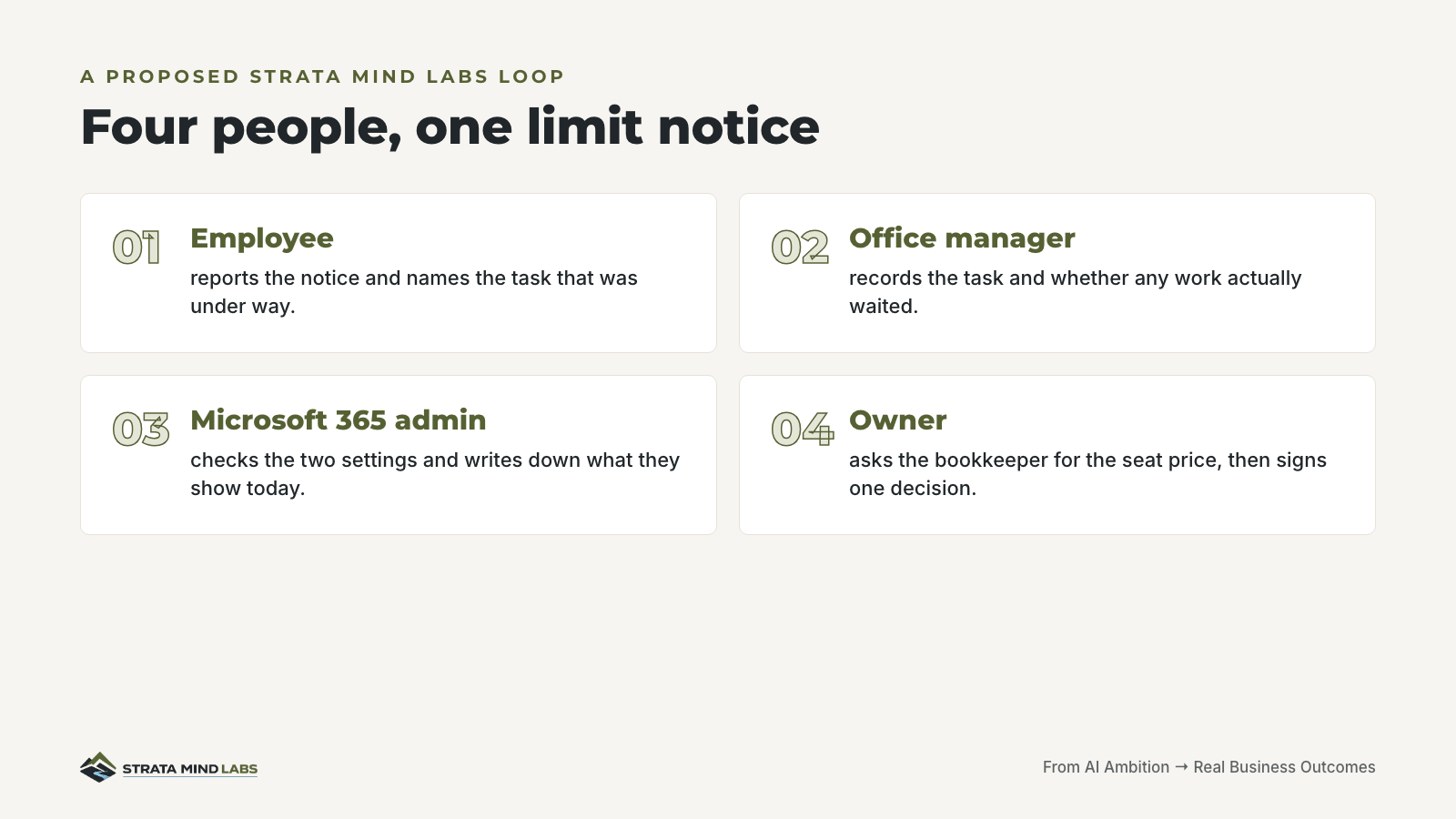
The routine gives the notice four hands. The employee reports it. The office manager records the task and whether anything waited. The Microsoft 365 admin checks the two settings and writes down what they show. The owner asks the bookkeeper for the seat price and signs one decision.
An upgrade button reports feature use. It can't price the job.
A first session for this week
Book 45 minutes with the office manager and the Microsoft 365 admin. That figure is a planning estimate, not an observed result. You need one real Copilot Chat task, the current seat price from the bookkeeper and a shared sheet or a printed card. A pen works.
Start with the admin opening the two settings and reading them aloud. Write down what each shows today, who can approve a request and whether the shop uses its own request process. Then fill one card from an actual notice. If nobody has seen one yet, use a card clearly labeled as a sample and check settings only. Don't change a setting in this session, and keep customer records off the card unless the shop has approved storing them.
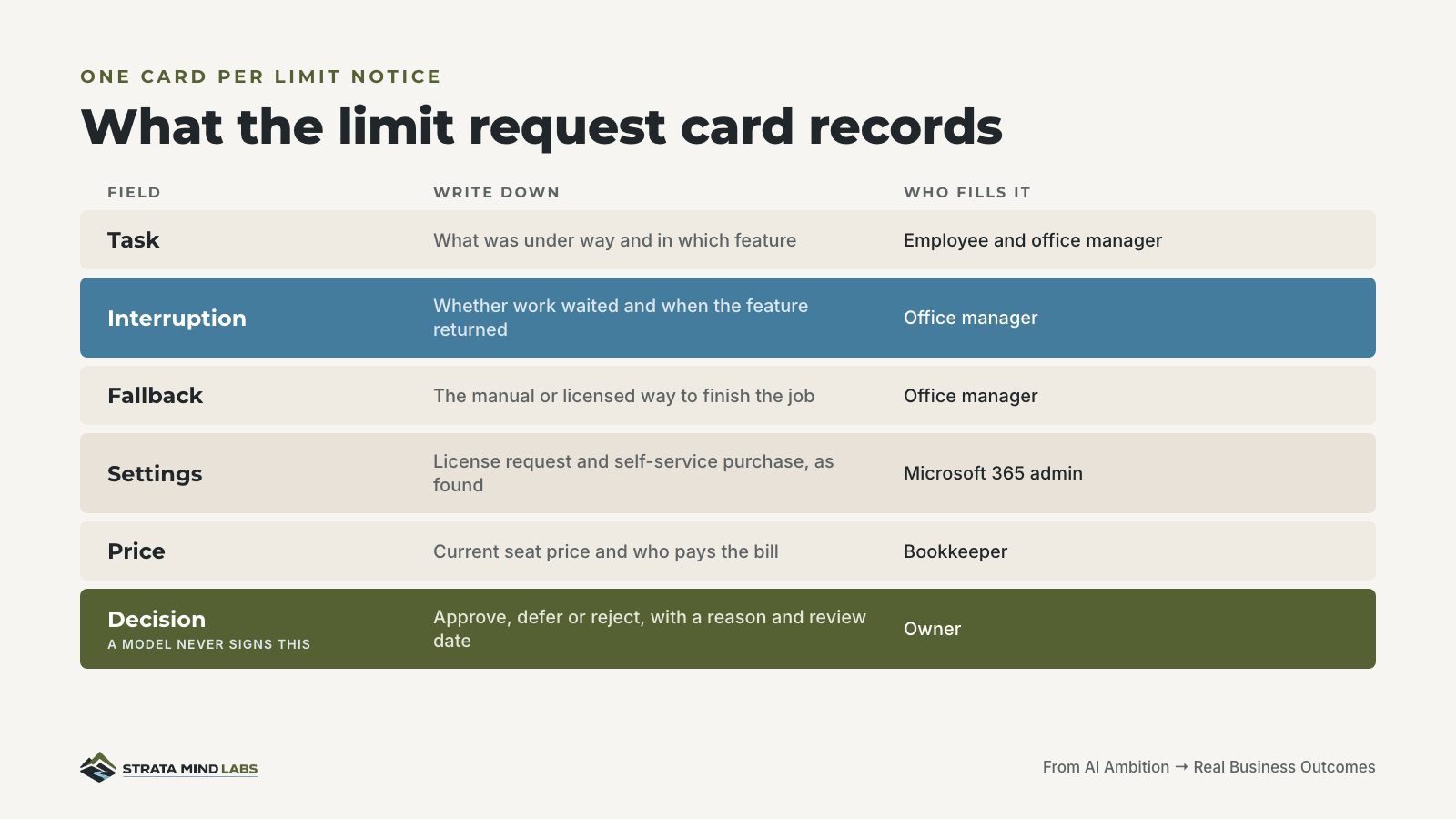
The first useful output is a completed card showing the task, the setting and the named approver. The check passes when a request has a named approver and the task record makes a seat decision intelligible. It stops when purchase rights changed unexpectedly or charges can't be explained. In that case leave the current setting alone, pull the billing record with the bookkeeper and have the admin find out why before anyone changes access.
Don't connect the card to purchasing, and don't let anything approve a seat on its own.
Five prompts to run this week
Use a redacted or synthetic card with no customer records, credentials or live tenant screenshots, because these prompts organize evidence and a person makes the purchase decision.
Inventory the task
Copy this prompt
Using the following redacted Copilot Chat limit request card, list the task in plain language, the feature used, the owner, any work that waited and every blank field. Return a table with one row per missing fact. Do not infer a delay or a cost from the notice. Card: [paste redacted card].
What this should tell you: Check the table for a named task, a named owner and blanks left visible. A claimed delay with no recorded wait is a warning sign. The notice proves the feature was used, and the task record tells you whether there's an operating problem. Move to prompt 2 only when the task and the missing facts are clear. Otherwise go back to the user for them.
Map purchase authority
Copy this prompt
Using the redacted card and the admin's written observations of license requests and self-service purchase settings, map who can request, approve and buy a Copilot license. Mark any setting that was not checked as unknown. Do not claim to have accessed the tenant. Return an authority table.
What this should tell you: Look for separate columns for request, approval and direct purchase, and make sure every unchecked setting still reads unknown. A clear route keeps an upgrade notice from turning into an accidental buying rule. The owner names an approver once the admin has confirmed the live settings. Then run prompt 3 with the verified table.
Trace the work interruption
Copy this prompt
Using the redacted request card and verified authority table, separate work already in progress from future feature use. List any task that actually waited, the stated return time and an existing fallback. If there is no observed wait, state that no delay is established. Return a short exception log.
What this should tell you: Look for a specific wait and a usable fallback. An invented outage fails the check. Microsoft says work in progress continues, so the business question is whether later work was held up. Decide whether the event earns a cost comparison or only monitoring, and run prompt 4 only if a recurring task or an observed wait warrants it.
Compare the seat decision
Copy this prompt
Using only the recorded task, observed waits, current seat price supplied by the bookkeeper and existing fallback, prepare three options: approve, defer and reject. State the evidence supporting each option, missing cost data and what would change the decision. Do not invent a return on investment or a threshold.
What this should tell you: Check that each option cites an actual observation and the price you supplied. Reject any saving calculated without measured work time. A paid seat is a business choice and the notice is one input to it. The owner picks an option after reading the card next to the cost, and prompt 5 turns that choice into a record.
Draft the owner decision record
Copy this prompt
Draft a one-page decision record from the redacted card, verified settings, exception log and supplied price. Include the selected option as a blank for the owner, a reason field, the fallback owner, the next review date and unresolved facts. Do not approve a purchase or change settings. End with the named human sign-off required.
What this should tell you: Inspect the draft for blank approval fields, unresolved facts and a review date. It must not pretend a model approved the seat. A written record lets the next limit notice follow the same route with a human still holding the decision. The owner signs approve, defer or reject only after checking the live tenant and the price.
Reading the full result
Five outputs come back: a task record, an authority map, an exception log, a cost comparison and an unsigned decision draft. The completed card is the one that matters first. A missing wait is a valid finding, and unknown settings stay unknown until the admin checks them.
Any claimed saving needs measured work time and a real price. Without both, leave the number out. The owner keeps the purchasing decision, and the next step is to approve, defer or reject one seat with a written reason.
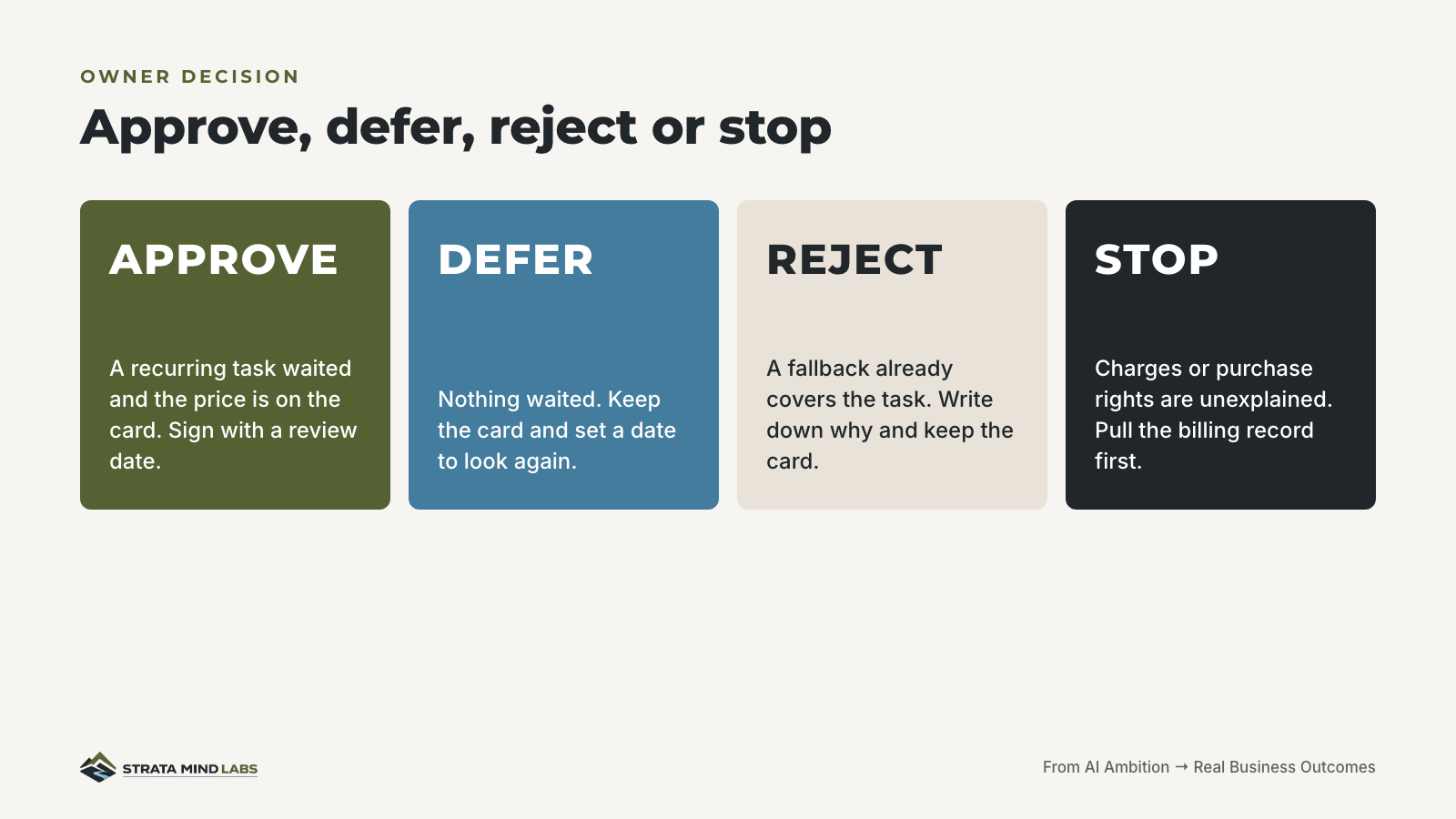
A request with no observed interruption can be deferred. A recurring task with an observed wait can be priced and reviewed against the card. If charges or rights are unexplained, stop and inspect billing with the bookkeeper.
What to do this week
A fair limit on all this
One case isn't a frequency. Nothing in this briefing measures how often a small shop will hit a cap, and a shop with occasional use may never see work delayed. Microsoft says no admin action is required for the feature to operate. A shop that never sees a wait can defer the seat and lose nothing but 45 minutes.
Vendor claims are vendor claims. Microsoft's description of the limits comes from Microsoft, and the partner version of it frames them as a sales opening. The admin pages describe how the settings work in general. I haven't seen any shop's tenant, and Microsoft's pages change, so check the page dates against the live admin center.
The card, the four-person routine, the 45-minute estimate, the five prompts and the rules on the decision graphic are Strata Mind Labs proposed practice. No standard requires them and nobody has tested them. No return is assumed. What the first session gives you is a card with the task, the settings and an approver written down, and a seat decision made on something other than a button.
CIO Question of the Day
Who in your shop can say yes to a Copilot seat, and what would they need to see first?
Sources
- Microsoft. (2026, November 4). Copilot Chat: limits for users without a Microsoft 365 Copilot license. Partner Center announcements. https://learn.microsoft.com/en-us/partner-center/announcements/2026-november#copilot-chat-limits-for-users-without-a-microsoft-365-copilot-license
- Microsoft. (n.d.). Limits for features in Microsoft Copilot Chat. Microsoft Support. https://support.microsoft.com/microsoft-365-copilot/standard-versus-priority-access-to-features-in-microsoft-365-copilot-chat
- Microsoft. (2026, June 17). Manage self-service license requests. Microsoft Learn. https://learn.microsoft.com/en-us/microsoft-365/commerce/licenses/manage-license-requests
- Microsoft. (2025, October 8). Manage self-service purchases and trials (for admins). Microsoft Learn. https://learn.microsoft.com/en-us/microsoft-365/commerce/subscriptions/manage-self-service-purchases-admins
- Microsoft. (2026, November 3). Availability update: Updates to usage-based billing for new Microsoft 365 Copilot Business licenses and Partner Center sandbox environments. Partner Center announcements. https://learn.microsoft.com/en-us/partner-center/announcements/2026-november#availability-update-updates-to-usage-based-billing-for-new-microsoft-365-copilot-business-licenses-and-partner-center-sandbox-environments
A limit notice shows use. The task record shows whether the shop needs the seat.
New briefings land as soon as the signal is worth your time.