
Check the Gmail AI Summary Before It Changes the Job
A one-inbox comparison card for the owner who answers customers from long threads
Executive decision: Google is expanding AI thread summaries in Gmail to more users. Decide which shared inboxes may use a summary as a reading aid and who checks the underlying thread before a price, date or promise reaches a customer. Start with one inbox and one long thread this week. The 30-minute first session is a planning estimate, not a measured result.
Somewhere down a long customer thread, somebody moved the appointment or changed the price. A summary has to decide whether that line made the cut.
The signal this week
On November 10, Google's Workspace Updates blog announced that Gemini features in Gmail are reaching more users. Two features are named. AI Overview puts a summary at the top of a long thread that pulls out key points and replies. Help me write, in its non-personalized form, drafts an email or revises text from a short prompt. Google says both were limited before to consumer accounts and specific Workspace editions. The post now lists all Google Workspace customers, Workspace Individual subscribers and people with personal Google accounts who are 18 or older and have smart features in Gmail turned on (source 1).
The features are on by default and users can turn them off. The post also says an admin can choose to disable Gemini features in Gmail. Google gives a gradual rollout of up to 15 days for the features to become visible, starting November 10, for Rapid Release and Scheduled Release domains. Ask your admin whether the feature has reached your domain yet (source 1).
Google's help page for the summary feature carries a warning that the announcement doesn't repeat in the text I read. It says Gemini features "may suggest inaccurate or inappropriate information." It also says not to rely on them as medical, legal, financial or other professional advice (source 2).
That is a vendor warning on a vendor page. No page I opened gives an error rate, and none says how a summary handles a small-business thread.
What Google's pages say about turning it off
The help page doesn't describe a setting that turns off summaries alone. It says that if you don't want AI Overview conversation summaries, you can turn off smart features. It adds that doing so also disables other tools, such as AI-assisted writing and proofreading, across Gmail and other Workspace apps (source 2).
The smart features page shows how many separate settings exist. One covers Gmail, Chat and Meet, one covers Google Workspace and one covers other Google products. Changes apply across every device and app where you're signed in. The page is written for individual users and doesn't mention admins (source 3).
Google's admin help page describes a different route. In the Admin console, a Feature access panel under Generative AI and Gemini for Workspace lets an admin enable or disable Gemini features in Gmail by organizational unit or group. The page says the panel is available only with certain editions and needs the Gemini Settings administrator privilege. It also says users need to turn on smart features and personalization to reach Gemini in Workspace services, and it treats smart features as a separate control (source 4).
So there's a user route and an admin route. The pages I read don't say which switch hides the summary in a given shop or what else goes dark with it. That isn't confirmed in Google's public documentation. Your admin can settle it by opening both screens and writing down what each one shows.
None of this makes the feature a bad idea. A long customer thread takes time to read, and a summary can help a new set of eyes get oriented. A blanket shutdown could take away tools your office likes. The check below tests whether one inbox can use the summary safely, which is a smaller question than whether Gmail should have it.
One thread, one card
This part is Strata Mind Labs proposed practice. No standard requires it. Treat the summary as a route into the source conversation. The customer thread stays the record, the owner sets the rule for each inbox and whoever sends a reply owns the commitment.
The card is a paper sheet or a spreadsheet. Its columns are inbox, thread date, summary claim, source message, discrepancy, reviewer and decision. If the summary leaves out a date, price, scope change or promise, the reviewer opens the message and writes the correct detail on the card.
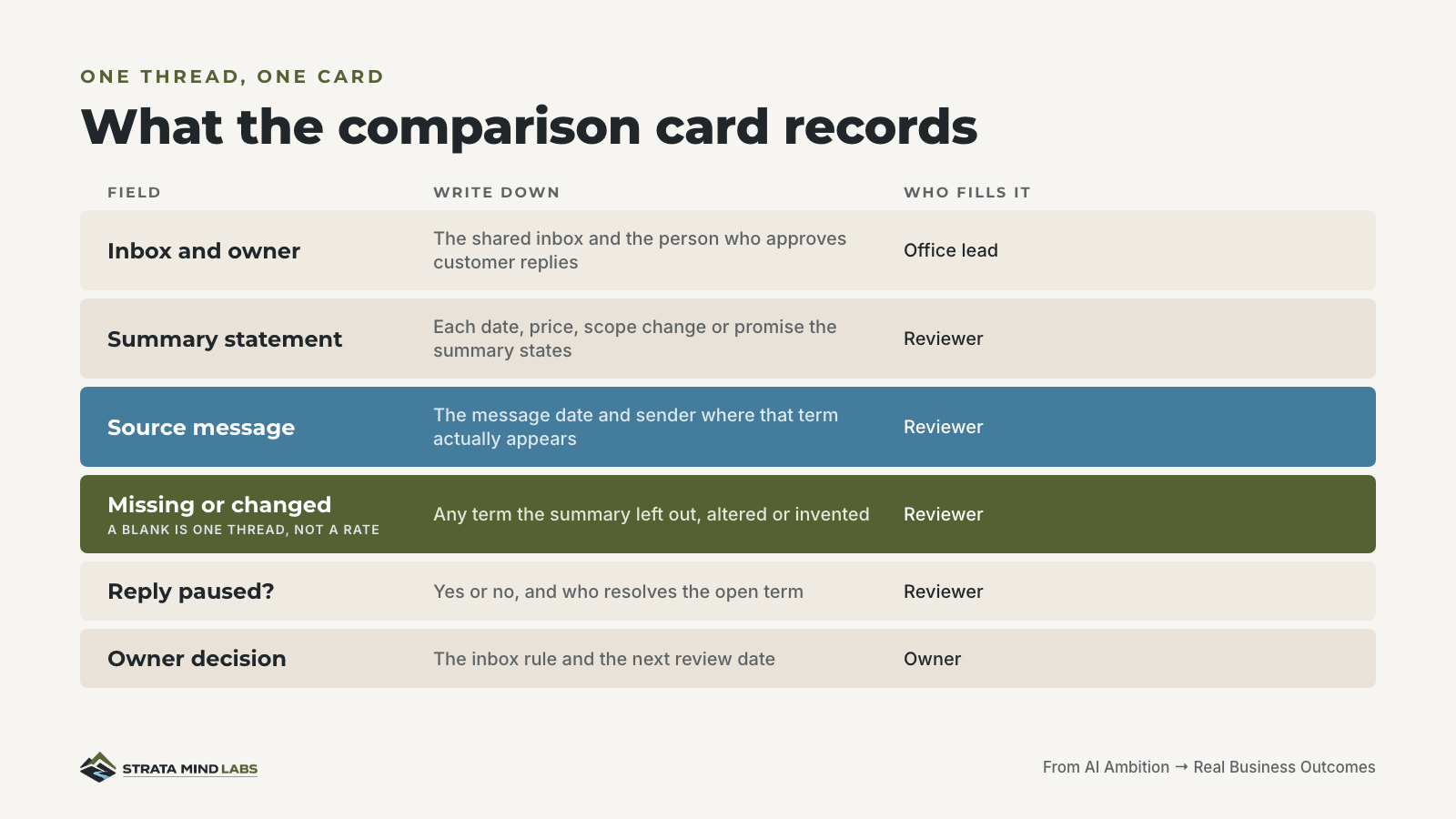
Take an illustrative case, invented for this exercise and not drawn from any client. A service customer books a Tuesday visit, moves it to Thursday three messages later and accepts a revised quote after the scope grows. A summary that says Tuesday, or quotes the first price, sends the wrong promise out under your name. A summary that gets both right hands you a blank row. A blank row describes that one thread and nothing more.
Use a thread you're already authorized to read and keep it inside approved systems. If you practice the prompts below in an outside assistant, paste in a redacted or synthetic thread. Customer messages don't belong in a tool nobody approved.
A first session for this week
Plan 30 minutes. That's an estimate for planning, and it assumes the feature is visible and an owner can open a suitable thread. The office lead picks one long thread and reads the summary. Then the reviewer marks every date, price and promise in it and finds the source message for each. The last pass runs the other direction, scanning the thread for any material term the summary left out.
The first useful output is a finished comparison card and an inbox decision. It isn't a production rollout or a measured improvement.
Stop if the feature isn't visible, if the inbox's data rules forbid the test or if a material term can't be traced to the thread. Keep working the customer's job from the original messages. The owner then decides whether to allow summaries in that inbox, require a second check or ask the admin about turning the feature off.
A second card sets who may do what with a summary. It's proposed, and it sits next to the summary feature as a control. Nothing in the announcement I read says the feature sends mail on its own. The card keeps the send step with a named person anyway.
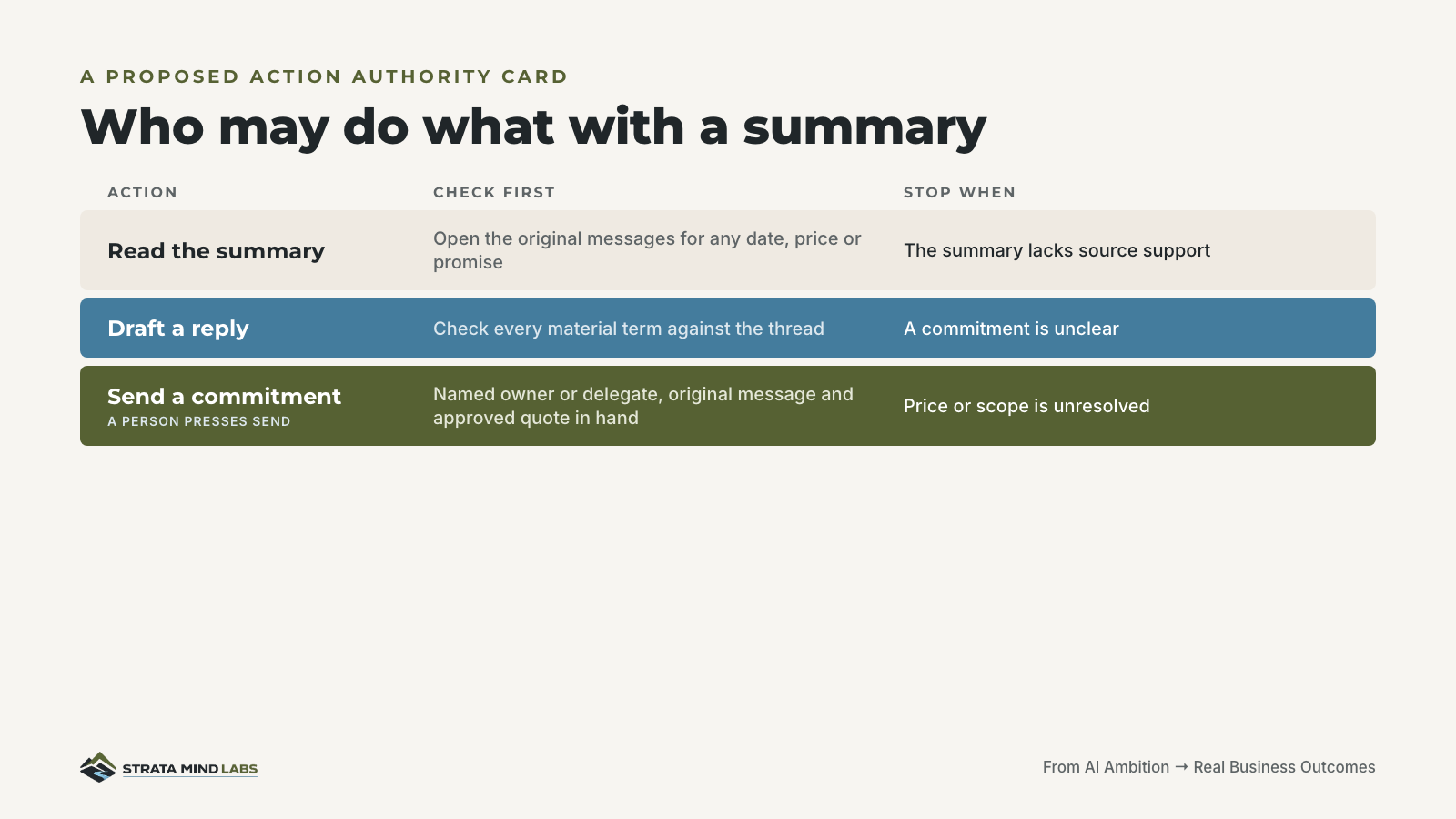
Record the real role names and your actual settings before you treat the card as a rule.
Five prompts to run this week
These prompts run on a redacted or synthetic exercise thread in a tool your shop has approved. A person compares every result with the original messages before anyone acts. The five results build one decision record.
Map the inbox work
Copy this prompt
Using the inbox description I provide, list the recurring customer decisions handled here. For each, name the person who may send a commitment and the source message or record they must check. Mark missing owner information as unknown. Do not infer permissions.
What this should tell you: Check the list for missing owners, work nobody recognizes and any permission claimed without evidence. A summary only helps when the next person knows which record controls the answer. Choose one inbox for a bounded test once an owner and a suitable thread are named, then redact the thread or get access approved before prompt 2.
Extract material terms
Copy this prompt
From this redacted or synthetic email thread, create a table of dates, prices, scope changes and promises. Quote no more than the short phrase needed to locate each item and identify its message date and sender role. Mark ambiguous terms as unclear. Do not invent a missing value.
What this should tell you: Check that each term points to a real message and that unclear items stay marked unclear. The table becomes a source checklist for the AI Overview and doesn't replace the conversation. Decide whether the thread holds enough traceable information to test the summary, then put the visible summary beside the table.
Compare summary with source
Copy this prompt
Compare this AI Overview summary with the material-term table and the redacted or synthetic source thread. List unsupported statements, omitted dates, prices, scope changes or promises, and wording that changes who committed to what. Show the source message for each item. If the evidence is absent, say evidence missing.
What this should tell you: Check every discrepancy against the original thread. Watch for unsupported certainty and for missing commitments. A short summary can point you the right way and still be unsafe as the basis for a customer reply. Decide whether the reviewer may use the summary for orientation while checking every material term, and record the confirmed discrepancies.
Set the exception path
Copy this prompt
Draft a one-page review rule for this inbox using only the confirmed discrepancies and the named roles. Specify when a staff member opens the full thread, when they pause a reply and who resolves an unclear price, date or promise. Include the effect of disabling smart features as a question for the Workspace admin to verify. Do not claim a setting has been changed.
What this should tell you: Look for a clear pause condition, a real escalation owner and any claim about admin settings that nobody verified. The exception path decides whether a summary error turns into a customer commitment. Approve the rule only after the inbox owner and the admin each confirm their part.
Prepare the owner decision
Copy this prompt
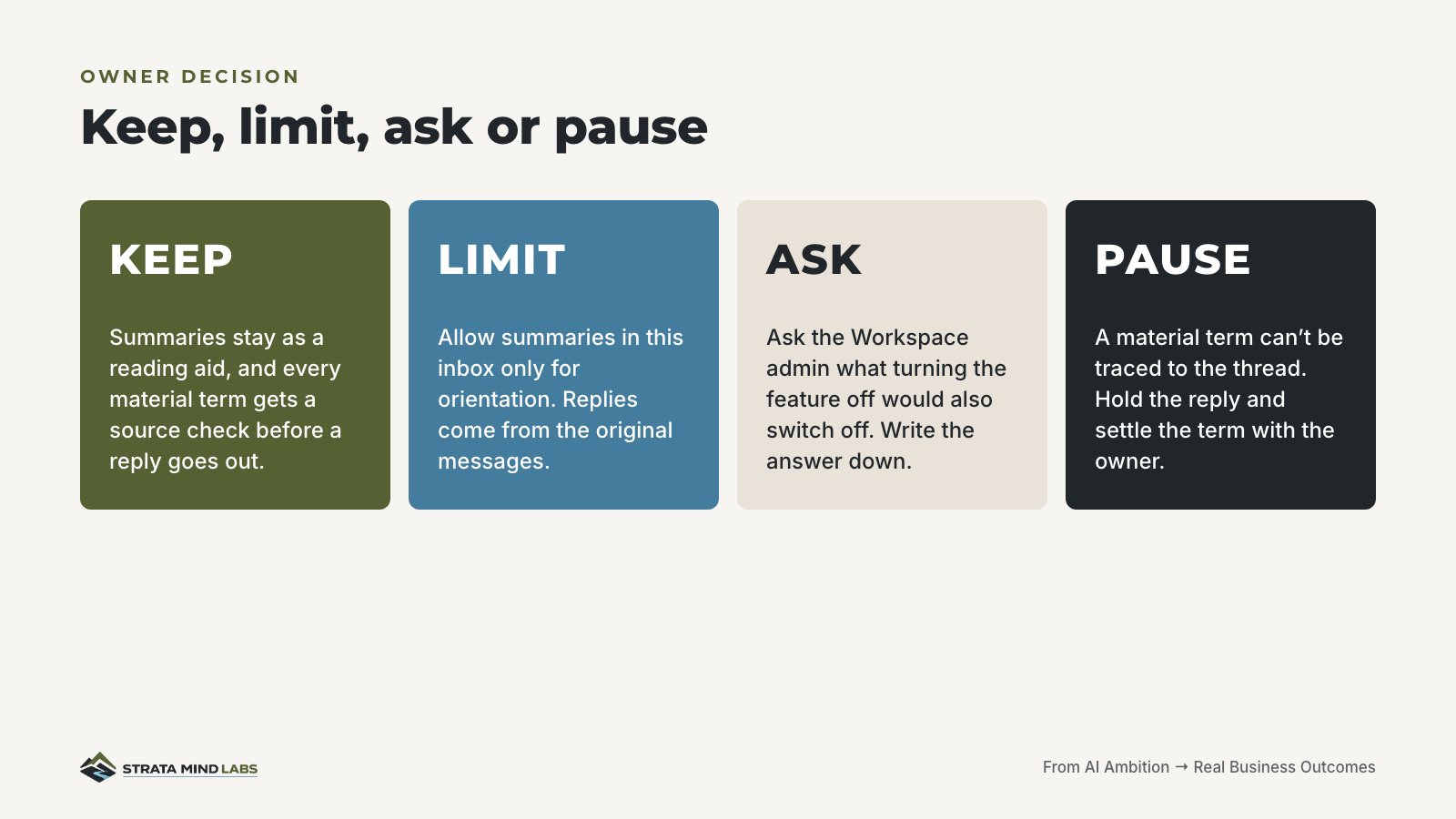
From the completed comparison card and confirmed review rule, write a decision brief with options to retain summaries with source checks, limit their use in this inbox or disable them after the admin reviews side effects. State evidence observed, evidence missing, the accountable owner and the next review date. Do not call a planning estimate a measured result.
What this should tell you: Check that the recommendation names the evidence you actually saw and leaves unobserved outcomes open. The owner chooses a workflow rule, and nobody has to take a vendor's word on accuracy to do it. Choose the inbox setting and review rule only when the owner accepts the exception path, then have the admin verify the tenant setting.
Reading the full result
Five drafts come back: an inventory, a term table, a discrepancy list, a review rule and an unsigned decision brief. The value is a traceable decision for one inbox. Staff keep responsibility for outgoing commitments and the admin confirms which controls exist.
The owner records the inbox, reviewer, date, observed discrepancies, the effect on adjacent smart features and the chosen rule. If a material claim can't be matched to the original thread, the reply pauses and the source messages take over. The next decision is whether to run the same card on another inbox.
What to do this week
A fair limit on all this
One thread is not a frequency. A clean card means this thread produced no discrepancy, and that's all it means. A discrepancy doesn't prove the feature is useless either.
Everything above about the feature comes from Google describing its own product. I read the announcement and three help pages on November 11, and pages change, so check the dates against what's live. Where the pages were silent on the off switch, I said so.
The comparison card, the authority table and the 30-minute estimate are Strata Mind Labs proposed practice. Nobody has tested them for a client and no standard requires them. No return is assumed. What you get is a dated card, an inbox rule and a named owner.
CIO Question of the Day
Which shared inbox in your shop holds the longest customer threads, and who checks the thread before a price or date taken from a summary goes back out?
Sources
- Google Workspace Updates. (2026, November 10). Expanding Gemini in Gmail to more Google Workspace users. Google Workspace Updates Blog. https://workspaceupdates.googleblog.com/2026/11/expanding-gemini-in-gmail-to-more-Google-Workspace-users.html
- Google. (n.d.). Catch up on email threads with AI Overview conversation summaries. Gmail Help. Retrieved November 11, 2026, from https://support.google.com/mail/answer/16561387
- Google. (n.d.). Learn about smart features and controls for Google Workspace and other Google products. Gmail Help. Retrieved November 11, 2026, from https://support.google.com/mail/answer/15604322
- Google. (n.d.). Manage access to Gemini features in Workspace services. Google Workspace Admin Help. Retrieved November 11, 2026, from https://knowledge.workspace.google.com/admin/gemini/manage-access-to-gemini-features-in-workspace-services
The summary is a route into the thread. The thread is still the record.
New briefings land as soon as the signal is worth your time.